How to Automate Facebook Comments with ChatGPT and Make.com: A Step-by-Step Guide
TL;DR: The Easy Summary: Create two Make.com workflows Managing social media engagement can be time-consuming, especially when running a popular Facebook page. The good news? You can automate thoughtful responses to your Facebook comments using ChatGPT and Make.com (formerly Integromat). The best pa

TL;DR: The Easy Summary:
Create two Make.com workflows
- First workflow monitors Facebook posts, collects comments, and uses ChatGPT to generate personalized responses, storing them in Google Sheets.
- Second workflow watches for approved responses in the sheet and automatically posts them as replies on Facebook.
- Total setup time: ~30 minutes.
- Get started free with Make.com’s 1,000 monthly operations.
Managing social media engagement can be time-consuming, especially when running a popular Facebook page. The good news? You can automate thoughtful responses to your Facebook comments using ChatGPT and Make.com (formerly Integromat). The best part? You can get started for free with Make.com’s generous free tier, which allows you to automate up to 1,000 operations per month.
Why Automate Facebook Comments?
Before diving into the technical setup, let’s consider why you might want to automate your Facebook comment responses:
- Save hours of manual comment moderation
- Maintain consistent engagement with your audience
- Scale your social media presence efficiently
- Never miss an opportunity to connect with your followers
Setting Up Your Automation Workflow
Let’s break down how to create an automated system that uses ChatGPT to generate personalized responses to Facebook comments. We’ll create two separate workflows: one to generate responses and another to post approved comments.
Workflow 1: Generating AI Responses
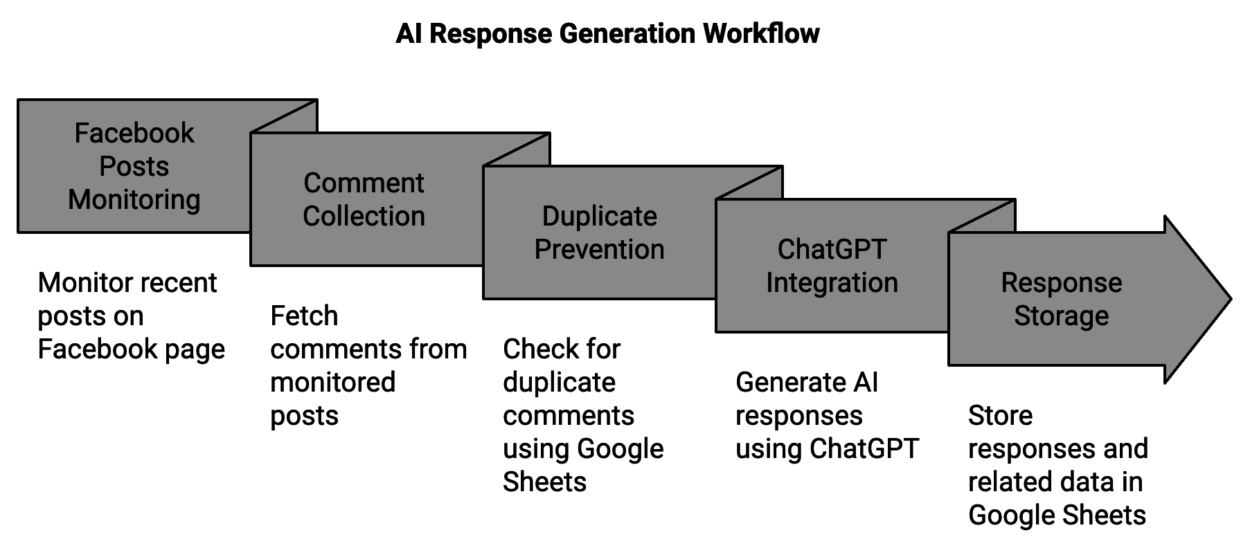
The first workflow monitors your Facebook page for new comments and generates AI-powered responses using ChatGPT. Here’s how to set it up:
- Facebook Posts Monitoring
- Configure the “Facebook Pages” module to monitor your page’s recent posts
- Set a reasonable limit (e.g., 5 posts per day) to stay within API limits
- Connect your Facebook page through Make.com’s authentication system
- Comment Collection
- Add another “Facebook Pages” module to fetch comments from these posts
- Set parameters to collect up to 50 comments per post
- Configure to sort by “reverse chronological” order to get the newest comments first
- Duplicate Prevention
- Implement a Google Sheets check to prevent duplicate responses
- Create a sheet to store processed comment IDs
- Use the “Filter” function to only process new comments
- ChatGPT Integration
- Configure the OpenAI GPT-4 module
- Craft a prompt that includes:
- The original post content and context
- The comment that needs a response
- Guidelines for maintaining brand voice
- Instructions for personalizing responses
- Response Storage
- Create a Google Sheet to store:
- Original post content
- User comments
- Generated responses
- Comment IDs
- Approval status
- Post URLs for reference
- Create a Google Sheet to store:
Workflow 2: Posting Approved Responses
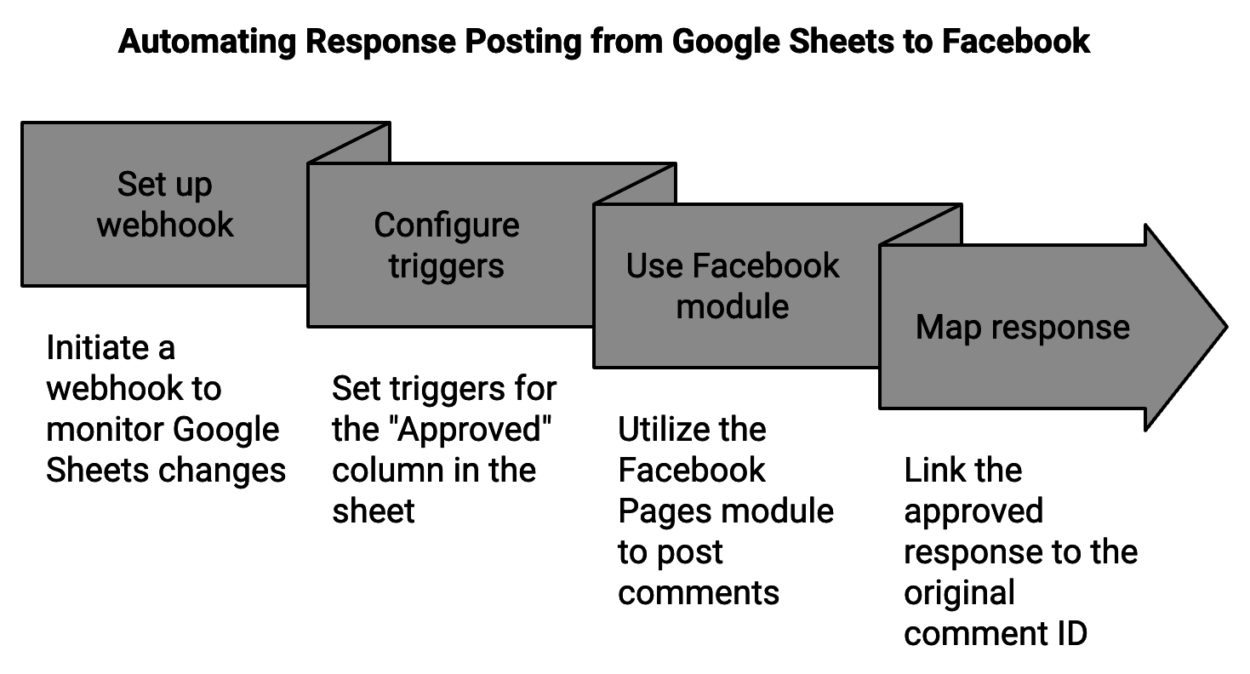
The second workflow handles the actual posting of approved responses:
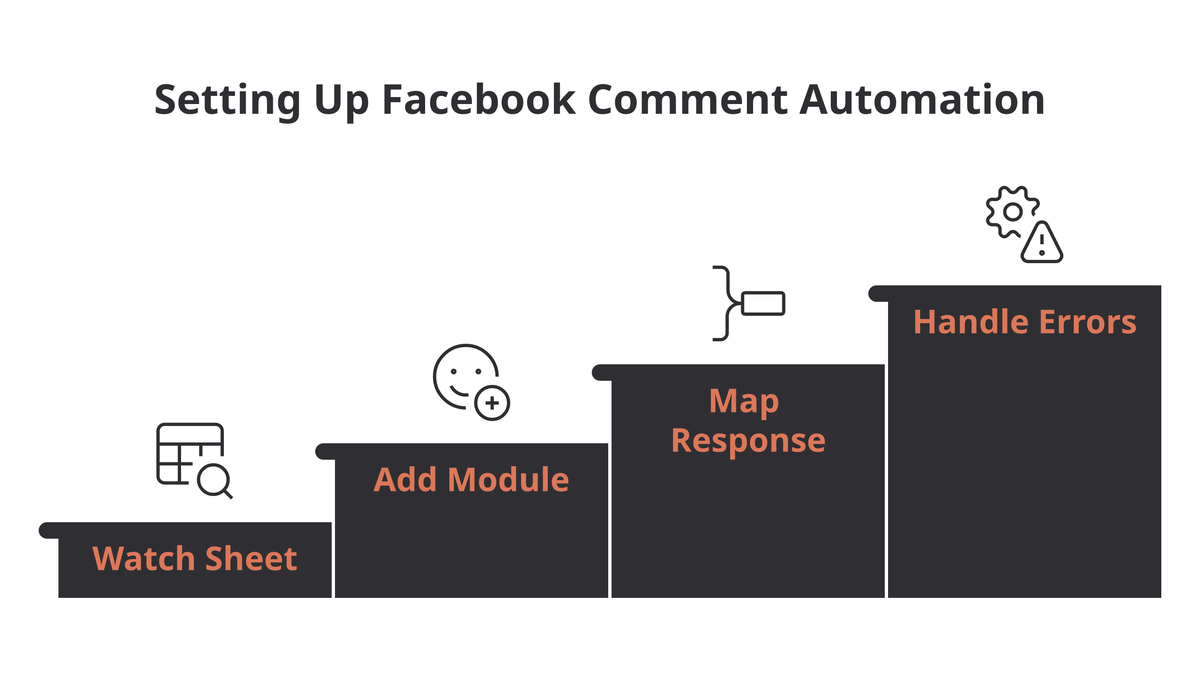
- Google Sheets Monitoring
- Set up a webhook to monitor changes in your response sheet
- Configure triggers for the “Approved” column
- Response Posting
- Use the Facebook Pages “Create Comment” module
- Map the approved response to the original comment ID
- Configure error handling for failed posts
Best Practices for Implementation
To ensure your automated responses feel authentic and maintain your brand voice:
- Prompt Engineering
- Instruct ChatGPT to:
- Use a conversational tone
- Include relevant emojis sparingly
- Address commenters by first name only
- Keep responses light and fun
- Maintain brand-appropriate language
- Instruct ChatGPT to:
- Quality Control
- Implement an approval system before posting
- Review generated responses for:
- Tone appropriateness
- Content accuracy
- Brand alignment
- Cultural sensitivity
- Performance Monitoring
- Track engagement metrics on automated responses
- Monitor response approval rates
- Adjust prompts based on performance
- Keep an eye on API usage limits
Technical Requirements
To implement this system, you’ll need:
- A Make.com account (free tier available)
- An OpenAI API key
- A Facebook Page with admin access
- A Google Workspace account
- Basic understanding of automation workflows
Safety and Moderation
Remember to:
- Always review responses before posting
- Set up appropriate filters for sensitive content
- Maintain a blacklist of topics for automatic escalation
- Have a backup plan for manual intervention when needed
Cost Considerations
The free tier of Make.com includes:
- 1,000 operations per month
- Basic automation features
- Standard API connections
You may need to upgrade based on:
- Comment volume
- Required operation frequency
- Additional feature needs
- API call requirements
My Take: What This Means for Solo Publishers
The workflow above is solid and still works — but a few things have shifted that change the calculus for solo publishers in 2025.
The ops math hits faster than you think. Make.com’s 1,000 free operations per month sounds generous until you’re running 5 posts a day with 50+ comments each. Workflow 1 alone burns roughly 5–6 operations per comment. At 250 comments a day, you hit the paid tier within the first 24 hours of real use. Budget $9–29/month for Core or Pro before you start — treat it as a business expense, not a surprise.
Skip the approval step if you’re in a low-risk niche. The Google Sheets approval buffer makes sense for brands with real reputation risk. For a niche affiliate or content publisher, if your prompt is tight enough you can collapse to a single direct-post workflow and cut your operation count in half. Test it on one low-stakes post first and see how the outputs hold up before rolling it out everywhere.
This pairs directly with the Facebook Bonus Program. If you’re working on maximizing Facebook Bonus Program earnings, engagement velocity matters. Automated comment responses keep threads alive and send the kind of sustained engagement signals Facebook’s algorithm rewards — which is exactly why Andy Skraga’s $500k Facebook traffic strategy worked at scale.
Swap GPT-4 for Claude. Make.com added Anthropic Claude as a first-class integration. Claude’s outputs tend to read more conversational and less robotic — which matters when platform scrutiny on AI-generated comments is increasing. The prompt structure is identical; just swap the OpenAI module for the Anthropic Claude module and test your outputs.
This workflow pattern extends well beyond Facebook comments. Helena Liu’s AI-driven blog post pipeline uses the same Make.com logic — once you understand the pattern, it scales across your whole publishing operation. And Facebook itself belongs in a deliberate traffic diversification strategy: not as a fallback channel, but as a primary one worth systematically automating.
The setup takes 30 minutes as advertised. The real investment is another hour tuning your prompt until outputs consistently pass the “would I actually post this?” test. That hour is where the real work happens.
Conclusion
Automating Facebook comments using ChatGPT and Make.com can significantly reduce your social media management workload while maintaining authentic engagement with your audience. Start with the free tier to test the waters, and scale up as needed based on your engagement levels and automation requirements.
Remember that while automation can handle routine interactions, maintaining a human touch in your social media presence is crucial. Use this system as a tool to enhance your engagement strategy, not completely replace human interaction.
Ready to get started? Head over to Make.com to create your free account and begin building your automated comment response system today!
Frequently Asked Questions
What tools do I need to automate Facebook comments with ChatGPT and Make.com?
You need five things to build this Facebook comment automation: a Make.com account (the free tier works to start), an OpenAI API key, a Facebook Page with admin access, a Google Workspace account, and a basic understanding of automation workflows. Google Sheets stores the generated responses and approval status, while Make.com connects ChatGPT to your Facebook Page.
How does the Make.com Facebook comment automation actually work?
This setup uses two separate Make.com workflows. The first monitors your Facebook page for new comments, checks Google Sheets to prevent duplicates, generates a reply with ChatGPT, and stores it in a sheet. The second workflow watches the sheet’s “Approved” column and posts approved responses back to the original comment via the Facebook Pages “Create Comment” module.
Is it safe to auto-post AI-generated replies to Facebook comments?
The post recommends always reviewing responses before they post rather than fully automating. The default design includes a Google Sheets approval step, plus filters for sensitive content, a blacklist of topics for automatic escalation, and a manual-intervention backup plan. For low-risk niches you can skip approval, but you should test it on one low-stakes post first.
How much does it cost to run this Facebook comment automation?
Make.com’s free tier covers 1,000 operations per month, but Workflow 1 burns roughly 5–6 operations per comment, so heavy use exhausts it fast. Running 5 posts a day with 50+ comments each can hit the paid tier within 24 hours. Budget $9–29/month for Make.com’s Core or Pro plan, plus your OpenAI API usage, as a business expense.
Sources: Make.com Help Center (help.make.com) for current module integrations including Anthropic Claude. Related reading on RankingHacks: Andy Skraga’s Facebook traffic case study, Facebook Bonus Program earnings guide, traffic diversification playbook.